
Online Image Editing Free: A Beginner's Guide for 2026

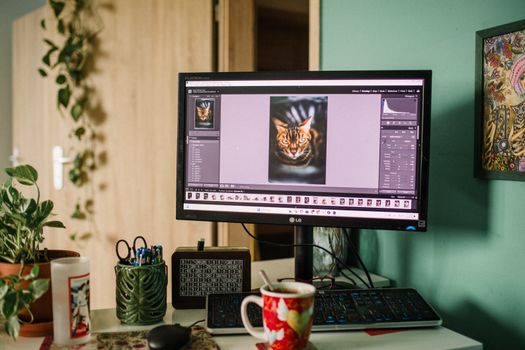
You do not need to install Photoshop to crop a photo, add a caption, or tidy up a product shot for an online listing. A browser tab and a free editor will handle most of it. The tricky part is that dozens of tools call themselves free online image editors, and they do not all work the same way. Some are built for fast touch-ups, others for layered design work, and a few feel closer to a full desktop program running inside a web page.
What Free Online Image Editing Really Means
Free online image editing means opening a website, uploading a picture, making changes, and downloading the result, usually without installing software. Every tool covered here describes itself as free: Canva's Free Photo Editor, Adobe Express, Pixlr, Photopea, Fotor, Online Image Editor, Picsart, iLoveIMG, and BeFunky all present a free editing experience that runs in the browser.
That said, "free" can mean different things from one service to the next. Some editors let you work without registration, while others ask you to create an account first. Some have paid tiers for extra assets or features. Because these details change often, check the current terms on the official site before relying on a tool for an important project.
What You Can Actually Do in a Browser
The days of free editors being limited to one or two functions are mostly over. The tasks below are the ones beginners reach for most often, and each item maps to features the tools themselves advertise.
Cropping and Resizing
Almost every free editor handles the basics. Canva lets you edit, crop, and enhance images. Adobe Express edits, crops, and can resize automatically. Photopea crops or resizes pictures. Fotor offers cropping as part of its editing toolkit. Online Image Editor resizes or crops images, and it also supports animated GIF files, which many simpler editors ignore.
Text, Stickers, and Frames
Adding words to a photo is one of the most common beginner jobs, whether that means a price tag, an event label, or a quote for social media. Adobe Express highlights adding text to photos as a quick enhancement. Photopea includes text among its editing tools. iLoveIMG lets you add text, stickers, and filters to pictures, or frame your photos.
Filters, Effects, and Touch-Ups
Filters and effects are where free editors differ most. Canva offers effects and filters. Photopea applies effects and filters. Fotor includes effects plus retouching tools. BeFunky focuses on photo effects alongside editing and collage creation. Picsart lists filters among its features and builds its editing experience around a large feature set.
Collages, Layers, and Merging
If your project involves more than one image, look for collage and layering tools. BeFunky includes a collage maker alongside its editor. Online Image Editor merges, blends, and overlays images. Photopea, which works in the browser with no downloads, supports layered editing and offers templates plus tutorials for learning the interface.
A Quick Comparison of Popular Free Editors
Each description below comes from how the tool presents itself. Use it as a starting point, then open two or three options and see which interface feels natural to you.
| Editor | What it highlights | Good starting point for |
|---|---|---|
| Canva Free Photo Editor | Edit, crop, enhance, add effects and filters; no watermarks; mobile app available | Everyday edits with a phone option |
| Adobe Express | Quick photo enhancement such as adding text; edits, crops, resizes automatically | Text on photos and fast resizing |
| Pixlr Editor | Advanced image editing features; aimed at beginners and professionals | Users who want more control |
| Photopea | Edit photos, apply effects and filters, add text, crop or resize; browser based, no downloads; templates and tutorials | Layer-heavy work without installing software |
| Fotor | Crop, add text and effects, retouch images | Light retouching and clean-ups |
| Online Image Editor | Resize or crop images including animated GIFs; merge, blend, overlay | GIF files and combining images |
| Picsart | 200+ features, 80K+ templates, filters, intuitive editing | Template-driven social graphics |
| iLoveIMG | Add text, stickers, filters, frames; no registration required | Fast edits without an account |
| BeFunky | Photo effects, photo editing, collage maker | Collages and creative effects |
How to Choose the Right Editor for Your Task
The fastest way to pick is to start from the job, not the brand. Ask what the finished image needs to do.
- Quick crop or resize for a form, listing, or document: a simple editor such as Online Image Editor or iLoveIMG covers it.
- Text, stickers, or a frame on a single photo: iLoveIMG and Adobe Express both describe these as core features.
- Filters and light retouching: Fotor, BeFunky, and Picsart include effects and retouch tools.
- Template-driven design work: Canva, Picsart, and Photopea all mention templates or design-oriented features.
- Layer-heavy editing that feels like desktop software: Photopea is built for that, with tutorials to help you learn it.
One practical rule helps here. If you need a single edit and may never return, choose the tool that requires the least setup. If you edit every week, pick one and learn it properly instead of switching tools every time.
A Simple Beginner Workflow
Order matters more than the specific app you choose. This sequence works in any of the editors listed above.
- Open your chosen editor in a browser tab.
- Upload the original photo, not a version that has already been compressed or edited elsewhere.
- Crop first. Removing unwanted edges early makes later steps easier to judge.
- Correct the basics, such as brightness and contrast, using the enhance or adjust tools the editor provides.
- Add text, stickers, or frames if the image needs them.
- Apply filters or effects last, and keep them subtle.
- Check the size, then resize or scale the image to the dimensions your destination needs.
- Download the file, then open it once to confirm it looks right.
Tips That Keep Free Editing Smooth
- Keep a copy of the original file somewhere safe, since some editors overwrite on save or export.
- Work from the largest version you have and resize down. Upscaling a small image rarely ends well.
- Watch the file format. Animated GIFs need an editor that supports them, and Online Image Editor explicitly handles animated GIFs.
- Test on mobile if you shoot with a phone. Canva offers a mobile app in addition to its browser editor.
- Read the export options before you finish, because some free tools limit formats or add account requirements at download.
- Recheck the tool's current offer if you plan to use the image commercially. Free plans change.
Common Mistakes Beginners Make
The most frequent problem is editing a screenshot instead of the original photo. A screenshot has already lost detail, so every crop and filter after that makes the image softer. Upload the real file whenever you can.
A close second is over-editing. Stacking several filters, a heavy vignette, and sharpening on one image usually looks worse than one clean adjustment. Make a single change, look at the result, then decide whether more is needed.
Third is ignoring dimensions. Many beginners finish the edit, download the picture, and only then discover it is too large or too small for where it needs to go. Decide the target size before you start, and use the resize function at the end.
Frequently Asked Questions
Which free online photo editor is best for beginners?
There is no single winner. Canva and Adobe Express lean toward quick, guided editing, while Photopea includes tutorials and templates for people who want more control. For a one-off crop or resize, a simple tool such as Online Image Editor or iLoveIMG is often faster than learning a full editor. Match the tool to the task and try a couple before settling.
Which photo editor is 100% free?
No answer here can be guaranteed, because free plans and feature limits change without notice. Every editor mentioned in this guide presents a free option, and iLoveIMG specifically notes that you can edit without registration. Even so, confirm the current terms on the official site before depending on any tool for paid or commercial work.
Can I edit photos without creating an account?
It depends on the service. iLoveIMG states that you can edit your photos online without registration. Other editors may ask you to sign in before downloading or before using certain assets. If avoiding an account matters to you, test the upload and export steps first, since that is where sign-up prompts usually appear.
Do free online editors add watermarks?
Some do and some do not, and it varies by plan. Canva's Free Photo Editor states that its images come out with no watermarks. For any other tool, check the export preview before you commit to a final design. Testing one image first shows you exactly what the downloaded file looks like without wasting time on a full project.
What is the difference between Pixlr and Photopea?
Both are browser-based photo editors that describe themselves as free. Pixlr presents advanced image editing features and positions itself for beginners and professionals alike. Photopea emphasizes editing photos, applying effects and filters, adding text, cropping or resizing, and working in your browser with no downloads, plus tutorials and templates to help you learn.
Do I need to install anything to edit images online?
No. Every tool in this guide runs in a web browser, and Photopea specifically notes that it needs no downloads. You upload a file, edit it on screen, and download the finished version. That makes browser editors a practical choice on shared computers, chromebooks, or any device where you cannot install software.


0 Comments